RStudio for beginners
What is RStudio?
RStudio is an integrated development environment (IDE) for the R language. It provides a unified interface for writing scripts, running code, visualizing data, and managing files (Fig 1).
Key components include:
- Script editor (write and save code)
- Console (execute commands)
- Environment (track variables and objects)
- Plots/Viewer (visualizations and outputs)
- Packages/Files panes (manage libraries and data)
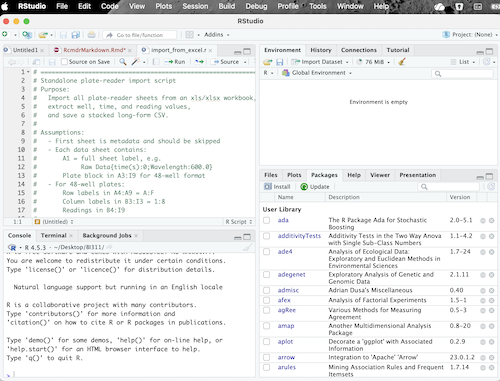
Figure 1. Screenshot of RStudio on macOS Tahoe 26.3.
RStudio is not the R language — it sits on top of R to make analysis more efficient and organized.
RStudio Desktop is installed directly onto a student’s computer and runs using their computer’s local system’s memory, storage, and R installation. Students manage packages, files, and updates themselves, and any work is stored locally or to the student’s cloud storage service (Apple iCloud, Google Drive, Miscrosoft OneDrive, etc).
In contrast, RStudio Server on Jetstream2 runs entirely in the cloud and is accessed through a web browser. Therefore, students do not install anything — everything (R, packages, data, and compute power) is hosted remotely. Students log into a shared server environment, which ensures everyone use the same configuration and avoids setup issues.
This page details access to our shared server.
How to Access RStudio via server on Jetstream2.
- Log In: Open your browser and go to the server’s URL ccc. Enter your provided username and password.
- Start a Session: Click “New Session” or select “RStudio Server” from the interactive apps menu.
- Configure Resources: If prompted, choose the R version and the amount of memory (RAM) or CPU cores you need.
- For beginners, the default “small” settings are usually enough.
- Students typically won’t have access to this option.
- Connect: Once the status changes from “Queued” to “Running,” click the “Connect” button to open the interface.