Keyboard shortcuts
Keyboard shortcuts refers to use of combinations of key strokes on the device keyboard that calls and carries out commands on the device. I won’t go into the history of keyboard shortcuts except to say they have been around since the 1970s — modern users may not be aware that these are available on their devices and, often, are much easier to use than a series of point and clicks or hand swipe gestures through nested menus and options.
About use of keyboard shortcuts
- The “+” Symbol: When you see a shortcut like Cmd + R (macOS), the plus sign just means “and.” You do not actually press the plus key.
- Case Doesn’t Matter: You don’t need to hold Shift to make the letter capital unless the shortcut explicitly says Shift.
- The hold and tap rule:
- Press and hold the modifier keys (like Ctrl, Cmd, or Alt) and keep them held down.
- For the record, function keys, F1, etc, are referred to as action or command keys.
- While still holding the special key, tap the final letter or key once.
- Let go of all keys and the instructions will be carried out
- Press and hold the modifier keys (like Ctrl, Cmd, or Alt) and keep them held down.
About keyboards
Vendors move around the keyboard, particularly with portable devices. If unsure, look up the vendor and model information for your device. Figure 1 shows a typical desktop keyboard for a United States version of a Microsoft Windows PC.
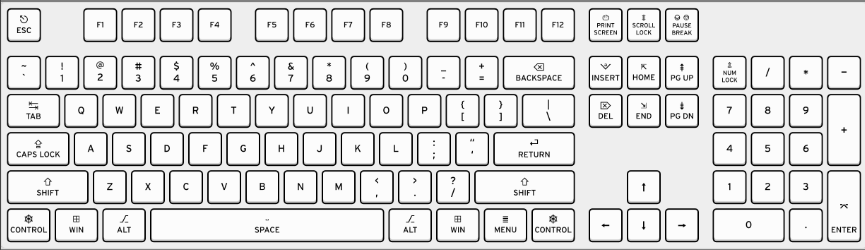
Figure 1. ANSI US QWERTY keyboard layout for Windows (png image from svg at Wikipedia).
For the macos layout, see Apple support page, Windows keys on a Mac keyboard.
On screen keyboards
Whether or not you have a touchscreen, you can also access on onscreen keyboard on your device. For Windows, Settings → Accessibility → Keyboard brings up a keyboard you can use to point and click. The keyboard shortcut is Windows key + Ctrl + O.
On macos, Apple icon () → System Preferences … → Accessibility → Keyboard, then checkbox Enable Full Keyboard Access. The keyboard shortcut is Option + Command key Cmd + F5, which brings up the Assessibility shortcuts menu. Again, check Full Keyboard Access and click Done button.
On to the shortcuts
My favorite on macOS is Cmd + Tab, which allows you to quickly switch between open applications. On Windows, Alt replaces Cmd.
Other common — and probably familiar! — shortcuts include
Copy command: on macOS, that’s Cmd + C, on Windows, replace Cmd with Ctrl.
Paste command: on macOS, that’s Cmd + V, on Windows, replace Cmd with Ctrl.
Want to quickly view the Desktop?Want to quickly view the Desktop?
- macOS tip: Keyboard shortcut Cmd + F3 or Fn + F11 will work.
- Win11 tip: Keyboard shortcut + D
Need to view file or folder path?
- macOS tip: Finder → View → Show Path Bar; keyboard shortcut Alt + Cmd + P.
- Win11 tip: File Explorer → View → Options → Change folder and search options → View → Display the full path in the title bar; keyboard shortcut: select the file in Explorer, then Alt + D
- Ctrl + L works, too.
Wikipedia has an extensive listing of shortcuts at Table of keyboard shortcuts.