Part 05. R packages: Making R do more
This page is primarily about use of R Commander and local installation of R. However, there are also instructions about R packages that apply to users of R in Google CoLab.
Learning objectives
- Install and load R packages.
- Use R packages to enhance functionality, including adding plug-ins to Rcmdr.
- Maintain package functionality through updates.
What’s on this page?
- Load a new R package
- How to select a mirror site
- Retrieve and install the package
- No R Commander? List of Rcmdr package dependencies
- Load the package functions
- Boost Rcmdr with plug-ins
- Update R packages after update to new R version
- Quiz
What to do
Complete the exercises on this page
- Add new capabilities to R by adding packages.
- About CRAN mirror sites.
- Retrieve and install an R package from a CRAN mirror.
- To use a package, you must load the package with
library()- Create a new password.
- Create a new passcode.
- Boost Rcmdr with plug-in packages.
- Update R packages after update to new R version.
How to do it
For these exercises, you may work
- within the Rcmdr script window
- at the command line and R prompt
- from a script document and the R GUI app
- RStudio
Choose one way. The quickest way is to just just work with R Commander.
A reminder to Google CoLab (serverless computer) users: the page is written assuming the reader runs a local installed R environment, not a serverless computing environment like CoLab. However, specific CoLab instructions are included where relevant and, if the code does not apply to CoLab, then the text begins with CoLab, skip this step statement.
Let’s begin.
Before you start
A reminder, always set your working directory in R first (see Part 02. Getting started with R and Rcmdr), before starting to do your analyses. Makes life a lot easier. Working with R packages is also detailed in the Appendix of Mike’s Biostatistics Book.
1. Load a new R package
R is useful by itself, the base install includes many functions. But it is the packages created by thousands of users that make R sing. For example, R Commander is a package that provides a graphical user interface to work with many typical statistical functions available in R, and you should have already installed and loaded Rcmdr before starting this set of exercises. If not, please go back and complete 1. Getting started with R and Rcmdr.
If you are using R Commander, then you’ve already downloaded, installed, and started an R package. We will use additional packages during the semester, so it is important that you gain confidence with this procedure.
To illustrate the utility of finding (or writing your own!) R package, consider the task – generate a strong password or passphrase. We’re not going to go into all of the issues about passwords and passphrases, but a few points are in order. To create a new password or passphrase, we may opt to use online websites — I’m no security expert, but if you think about it, using someone’s (who??) website can’t be a secure option. So, best to generate the password locally — on your own computer.
Note 1: Passwords and passphrases, yes. Passkeys, no. R can’t generally be used to generate passkeys, which are generated and managed by the browser, operating system, and applications using WebAuthn API.
Base R only. In R, we can use the sample() function, which is included in the base R installation. For example, to create a 8-digit pin, the code would be
x <- seq(0, 9)
sample(x, 8, replace=TRUE)
and the R output was
[1] 0 8 7 9 5 0 0 7
Note 2: If I run the sample() command again, I get different samples. For reproducibility, use the set.seed function. For example, run
set.seed(2013)
sample(x, 8, replace=TRUE)
returns
[1] 8 2 4 3 0 6 0 6
and again
set.seed(2013)
sample(x, 8, replace=TRUE)
returns again
[1] 8 2 4 3 0 6 0 6
We talk more about sample() in Mike’s Biostatistics Book, Chapter 5.6 – Sampling from Populations.
Now, try an R package created to make password creation easier. The package is “password,” which provides a framework for you to generate passwords. These passwords could be used anywhere you need a decent password, and, because you generate the password locally (on your computer), there is less risk of someone grabbing your password from one of those online websites that claims to help you generate good passwords. Alternatively, we can install a package, riceware, to create passphrases.
2. How to select a mirror site
CoLab, skip this step. Before you can download a package you need to set the CRAN mirror site. Mirror sites contain the same files as the main site, https://cran.r-project.org/, but are used to reduce the amount of traffic that the main website receives. The full listing of current mirrors for R Project can be found at https://cran.r-project.org/mirrors.html. As a general rule I recommend use of the 0-Cloud site run by the folks at RStudio/Posit. (For more about this mirror site, read this post from 2013.)
You may have already saved a CRAN mirror site when you downloaded and installed R Commander. In the event that you have not, then proceed to do so now. Set the mirror site via the R console or alternatively, call the function
chooseCRANmirror()
which will bring up a graphical list of mirror sites to choose from.
3. Retrieve and install the package
Install password.
If you know the name of the package, in this case password, then call the function directly by typing the command at the R prompt.
install.packages("password")
Alternatively, once the mirror site is set, use the R console to locate and download the package.
Note 3: If you know exactly the name of the package (ie, you know it is “password” and not “passwords”), then you could simply tell R to grab the package from a particular mirror site directly by typing at the R prompt. This
install.packages("password", repos="https://cloud.r-project.org/")
Assuming all goes well, R output will look like
install.packages("password")
--- Please select a CRAN mirror for use in this session ---
package 'password' successfully unpacked and MD5 sums checked

The downloaded binary packages are in
C:\Users\USERNAME\AppData\Local\Temp\RtmpIh5woj\downloaded_packages
Of course, USERNAME will be replaced by your own username on your computer.
Download the second package, the passphrase package, riceware.
install.packages("riceware")
For multiple packages, add the names of the packages into an object, then install.
myPkg <- c("password", "riceware")
install.packages(myPkg)
Note 4: If you go the named object route, note that you wouldn’t enclose the name with quotes. Otherwise, R would search the mirror site for a named package called "myPkg".
install readxl
Another example, install readxl to manage data saved in spreadsheet files saved as .xlsx or the older .xls Microsoft Excel formats.
install.packages("readxl")
Note 5: Alternatively, the open document format .ods (LibreOffice Calc) can be used, but with a different package, readODS. Working with your spreadsheets created with Google Sheets, but is more involved, requiring first to open a link to Google Drive.
This is a good place to summarize the basics of good practice use of spreadsheets to hold data. See Spreadsheets and data entry for more. In brief, we want data in one sheet, with just rows and columns of either text or numbers, no mixed types. The first row reserved for short but descriptive headers. Meta information and the data dictionary are entered in a separate sheet of the file. A portion of a typical data sheet is visible in Figure 1.
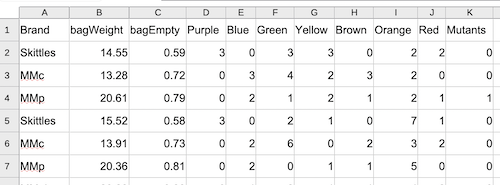
Figure 1. Screenshot of a typical data sheet, just rows and columns with short, descriptive words as column headers.
Assuming the file is called candy.xlsx and the data is stored in a sheet called data in folder Project Candy/Data, then
library(readxl)
myFile <- "candy.xlsx"
myData <- read_excel(myFile, sheet = "data")
# Confirm import
head(myData)
While I don’t recommend including meta information on the same sheet as the data, this is a a standard in some fields. Figure 2 contains a screenshot of the candy data, but with meta information in rows one through five.
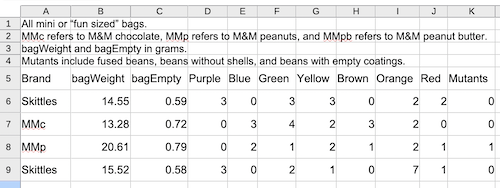
Figure 2. Screenshot of a data sheet with a few ros of meta information and the data in row 5 with short, descriptive words as column headers.
Modify the code as follows.
myData <- read_excel(myFile, sheet = "data", skip = 4)Similarly, you can specify to import columns, excluding others. Modify the code as follows.
myData <- read_excel(myFile, sheet = "data", skip = 4, range = "B5:D100")4. No R Commander? List of Rcmdr package dependencies
If for whatever reason you have not installed and plan to use R Commander, there are other packages included in R Commander that you may want (need) to install and load. Many R packages build on the work of others. Some include other packages as dependencies (needed for the package to work), while others list suggested packages that aren’t required but add useful features.
For example, what if R Commander is not installed in your R environment (eg, Google Colab)? Then, some of the functions we talk about in this course would not be available to you. We use several builtin datasets from the car package, a package included when R Commander is installed. A simple solution? When you come across use of the car package in this workbook or in Mike’s Biostatistics Book , just install car, then run library(car). You then benefit from access to all of the functions and datasets in the car package without needed access to R Commander.
What are other packages included in R Commander and the RcmdrMisc package (loaded with RCmdr)? Run the following code to see:
pkg <- available.packages()
This line grabs and stores to an object I called pkg all of the installed packages in your R environment. The object pkg includes the names of the packages plus other information. For our purposes we want to know which additional packages Rcdmr depends on (“Dependencies“) and others that are suggested (“Suggests“).
pkg["Rcmdr","Depends"]
returns
R (>= 3.5.0), grDevices, graphics, methods, stats, utils,\nsplines, RcmdrMisc (>= 2.9-1), car (>= 3.1-0), effects (>=\n4.0-3)
and
pkg["RcmdrMisc","Depends"]
returns
R (>= 3.5.0), utils, car (>= 3.0-0), sandwich
Try on your own for the list of suggested packages for Rcmdr and RcmdrMisc. Hint: n = 21 and n = 3, respectively.
5. Load the package functions
After downloading and installation have completed, activate the password package. As you recall, we load most R packages by calling the library function.
library(password)
The first time you use a package you probably are not familiar with the command structure. The good news is that packages come with help files. So, let’s learn about password from the help file. At the R prompt type
help(password)
and an html file should load in your default browser.
From the help page for password package we learn that the basic command is
password(n = 8, numbers = TRUE, case = TRUE, special = c("]", "!", "^", "_", ">"))
Note 6: Again, it is not my intent to impose security rules on you. However, there are certain characters that should be avoided because they can lead to technical problems at some websites. For example, avoid reserved command characters like &, $, %, and | (the “pipe”). Avoid forward, /, and backslash, \, characters because they are typically treated as file and directory path name characters. Finally, avoid the apostrophe, and single and double quotation marks.
At least in the US, the standard character code used is known as UTF-8. Using decimals, R can lookup unicode characters with the function intToUtf8(). For example,
intToUtf8(56)
returns
[1] "8"
In Excel and other spreadsheets, use the function =UNICHAR(56).
There’s more about the function in the help page, but it seems pretty straight forward. We change the password length by changing n. The default is set to 8. If we want a password without numbers, then we would set numbers=FALSE. If we want all lower case letters, then we set case = FALSE. And finally, if we want to include special characters, then we add to, or subtract from, the list of characters in the “combined” special object. Only five of the possible 33 special characters are included in the default list of special (see Wikipedia for a full list).
Here’s a 12 letter password, with numbers, all lowercase, without special characters.
password(n = 12, numbers = TRUE, case = FALSE, special = c())
And the output is
[1] "3hsyb1av9ro4"
Try on your own. Try different combinations of password length, with and without numbers, upper and lower cases, special characters, both default and extended list of special characters. Which matters more, increasing the password type (ie, the number of characters) or the length of the password?
Optional. Test the “strength” of your password with one of the many online services, eg, https://lastpass.com/howsecure.php gives a ranking; https://random-ize.com/how-long-to-hack-pass/ does what is says. The site claims our password listed in output would take “53 years, 7 months” if a brute-force hack was attempted.
Update: Try against zxcvbn, an open source project used to check passwords and supported by DropBox. A demo version is available at https://www.bennish.net/password-strength-checker)
Try on your own. Calculate Shannon’s information entropy in bits (see Wikipedia for the logic). Let cardinality equal the number of elements in the space, eg, all of the characters possible, and length equal the number of characters of the password. For our example password
#This will make a new password
myPass <- password(n = 12, numbers = TRUE, case = FALSE, special = c())
length <- nchar(myPass)
cardinality <- 36 #26 lower case + ten numbers from zero to nine + + no upper case + no special characters
entropy <- n*log(cardinality,2) #base 2, because "bits"
entropy #password strength
And the output from R is
[1] 62.0391
The larger the entropy, the stronger our password against a “brute-force-attack.” Our password would take 262.0391, or 4.74e+18 (4.74 quintillion!) attempts of a random, brute-force hacker attack to discover the password.
However, our password also is hard to remember, so in that sense, it’s not a good password. Consider the point of view expressed by xkcd (Fig 2).
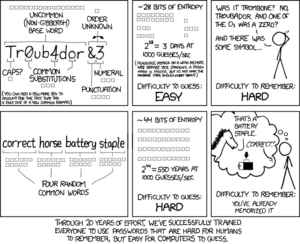
Figure 2. https://xkcd.com/936/ “Password strength.”
So, some prefer to use passphrases, hence the riceware package. I’ll leave it to you to try the package. Start with looking at the help page for the main function, generate_passphrase(). It’s also described by the package writer at his Github site.
?generate_passphrase
6. Boost Rcmdr with plug-ins
CoLab, skip this step. R Commander includes many packages, but can be further extended with a number of useful plugins. For example, the plugin KMggplot2 adds links to the popular ggplot2 package.
- If you are using
Rcmdr, then close R Commander before proceeding. - Download and install the package
RcmdrPlugin.KMggplot2as you did for the password package and other packages. - Start Rcmdr.
- If you closed Rcmdr, then it is still running in the background. To bring Rcmdr up again, type
Commander()at the R prompt instead oflibrary(Rcmdr).
- If you closed Rcmdr, then it is still running in the background. To bring Rcmdr up again, type
- When Rcmdr is back up and running, you’ll see the plug-in as an extra menu option.
In addition to RcmdrPlugin.KMggplot2, additional R Commander plugins you may use in this course include
RcmdrPlugin:doBy
RcmdrPlugin:EBM
RcmdrPlugin:survival
RcmdrPlugin:temis
I’m not asking you to install these now. You should, however, learn what kind of tasks these sets of functions will allow you to do. By learning what others have done, it may inspire you to think about the kinds of projects you can do — the software is just waiting to be used!
| Package | Description |
|---|---|
| RcmdrPlugin.aRnova | R Commander Plug-in for Repeated-Measures ANOVA |
| RcmdrPlugin.BiclustGUI | 'Rcmdr' Plug-in GUI for Biclustering |
| RcmdrPlugin.BWS1 | R Commander Plug-in for Case 1 (Object Case) Best-Worst Scaling |
| RcmdrPlugin.BWS2 | R Commander Plug-in for Case 2 Best-Worst Scaling |
| RcmdrPlugin.coin | Rcmdr Coin Plug-in |
| RcmdrPlugin.cpd | R Commander Plug-in for Complex Pearson Distributions |
| RcmdrPlugin.DCCV | R Commander Plug-in for Dichotomous Choice Contingent Valuation |
| RcmdrPlugin.DCE | R Commander Plug-in for Discrete Choice Experiments |
| RcmdrPlugin.depthTools | R Commander Depth Tools Plug-in |
| RcmdrPlugin.DoE | R Commander Plugin for (Industrial) Design of Experiments |
| RcmdrPlugin.EACSPIR | Plugin de R-Commander para el Manual 'EACSPIR' |
| RcmdrPlugin.EBM | Rcmdr Evidence Based Medicine Plug-in Package |
| RcmdrPlugin.EcoVirtual | Rcmdr EcoVirtual Plugin |
| RcmdrPlugin.Export | Export R Output to LaTeX or HTML |
| RcmdrPlugin.EZR | R Commander Plug-in for the EZR (Easy R) Package |
| RcmdrPlugin.FactoMineR | Graphical User Interface for FactoMineR |
| RcmdrPlugin.GWRM | R Commander Plug-in for Fitting Generalized Waring Regression Models |
| RcmdrPlugin.HH | Rcmdr Support for the HH Package |
| RcmdrPlugin.KMggplot2 | R Commander Plug-in for Data Visualization with 'ggplot2' |
| RcmdrPlugin.MA | Graphical User Interface for Conducting Meta-Analyses in R |
| RcmdrPlugin.MPAStats | R Commander Plug-in for MPA Statistics |
| RcmdrPlugin.NMBU | R Commander Plug-in for University Level Applied Statistics |
| RcmdrPlugin.orloca | A GUI for Planar Location Problems |
| RcmdrPlugin.PcaRobust | R Commander Plug-in for Robust Principal Component Analysis |
| RcmdrPlugin.RiskDemo | R Commander Plug-in for Risk Demonstration |
| RcmdrPlugin.RMTCJags | R MTC Jags 'Rcmdr' Plugin |
| RcmdrPlugin.ROC | Rcmdr Receiver Operator Characteristic Plug-in Package |
| RcmdrPlugin.SCDA | Rcmdr Plugin for Designing and Analyzing Single-Case Experiments |
| RcmdrPlugin.sos | Efficiently search the R help pages |
| RcmdrPlugin.survival | R Commander Plug-in for the 'survival' Package |
| RcmdrPlugin.TeachingDemos | Rcmdr Teaching Demos Plug-in |
| RcmdrPlugin.TeachStat | R Commander Plugin for Teaching Statistical Methods |
| RcmdrPlugin.temis | Graphical Integrated Text Mining Solution |
| RcmdrPlugin.UCA | UCA Rcmdr Plug-in |
| RcmdrPlugin.WorldFlora | R Commander Plug-in for the 'WorldFlora' Package |
7. Update R packages after update to new R version
CoLab, skip this step. R-project publishes major releases to R about once per year (R Developer page), with patches released as needed more frequently. Updating to new version of R does not update downloaded R packages; this needs to be accomplished by the user. There are several ways to update R packages; see R Packages in Appendix of Mike’s Biostatistics Book for more information.
7. Page quiz
R packages
Seven questions from this page